 Storage Cleaner
How to clear Xcode DerivedData, simulators and device support
Xcode is usually the single biggest source of "System Data" on a Mac used for iOS or macOS development, and it almost never cleans up after itself. On a machine that has been through a few Xcode releases, 30–100 GB of Xcode leftovers is normal. This guide goes through each folder, biggest and safest first, and says exactly what you give up by deleting it.
First, see where the space is
du -sh ~/Library/Developer/Xcode/* ~/Library/Developer/CoreSimulator/* 2>/dev/null | sort -hr
xcrun simctl runtime list
The first command sizes everything Xcode keeps in your Library folder. Simulator runtimes don't show up there, because modern Xcode stores them as disk images in a system area, so the second command lists those separately.
| What | Typical size | Safe? | Cost of deleting |
|---|---|---|---|
| Simulator runtimes | 7–10 GB each | Yes, if unused | Re-download if you need that iOS version |
| DerivedData | 5–60 GB | Yes | Next build and indexing are slower |
| iOS DeviceSupport | 3–6 GB per iOS version | Yes, old versions | Re-copied when that device connects |
| Unavailable simulators | 0.1–5 GB | Yes | None: they can't run anyway |
| Archives | 0.1–2 GB each | Careful | You lose dSYMs for crash reports |
1. Old simulator runtimes (often 8+ GB each)
Every Xcode upgrade tends to bring a new runtime while keeping the old ones. Preview the ones you haven't used in two months, then delete them:
xcrun simctl runtime delete --notUsedSinceDays 60 --dry-run
xcrun simctl runtime delete --notUsedSinceDays 60
Or remove one by its identifier from xcrun simctl runtime list, or in Xcode › Settings › Components. Keep the runtime your deployment target needs. More detail in how to delete old simulator runtimes.
2. Simulators you can't boot any more
xcrun simctl delete unavailableWhen a runtime is removed, the simulator devices that used it stay behind in ~/Library/Developer/CoreSimulator/Devices, with any apps and data you installed in them. This command deletes only those orphaned devices.
3. DerivedData
~/Library/Developer/Xcode/DerivedData holds build products, intermediate files, logs and the code index for every project you've ever opened, including ones you deleted years ago. Each project gets a folder named after it plus a random suffix, e.g. MyApp-bxkqzvtgj….
It's safe to delete: Xcode regenerates it. The cost is that the next build of each project is a clean build and indexing starts over, which can take a few minutes on big projects.
- One project: in Xcode, Product › Clean Build Folder (⇧⌘K) clears that project's build products, though not its index.
- Everything, safely: quit Xcode, then open the folder with
open ~/Library/Developer/Xcode/DerivedDataand drag old project folders to the Trash. - Everything, from Terminal:
rm -rf ~/Library/Developer/Xcode/DerivedData/*
Quit Xcode first. rm -rf skips the Trash, so double-check the path before pressing Return.
Tip: sort the folders by date modified and delete the ones for projects you haven't built in months; you'll get most of the space back without slowing down the project you're working on today.
4. Device support files
~/Library/Developer/Xcode/iOS DeviceSupport gets a 3–6 GB folder for each iOS version of each device you've connected, and similar folders exist for watchOS, tvOS and visionOS. Delete versions none of your devices run any more; Xcode re-copies the symbols the next time a device with that version connects. See is iOS DeviceSupport safe to delete?
5. Archives (be careful)
~/Library/Developer/Xcode/Archives holds every build you've archived for TestFlight or the App Store, including the dSYM files you need to symbolicate crash reports from that version. Before deleting an archive, make sure the version is no longer in users' hands, or that its dSYMs are stored elsewhere (App Store Connect keeps them if you uploaded them with the build). Manage archives in Window › Organizer › Archives.
6. Smaller leftovers
- Old Xcode versions: an extra
Xcode-beta.appin Applications is 10+ GB on its own. - Previews and caches:
~/Library/Developer/Xcode/UserData/Previewsand~/Library/Caches/com.apple.dt.Xcodeare regenerated as needed. - Swift Package Manager cache:
~/Library/Caches/org.swift.swiftpm, re-downloaded on the next resolve.
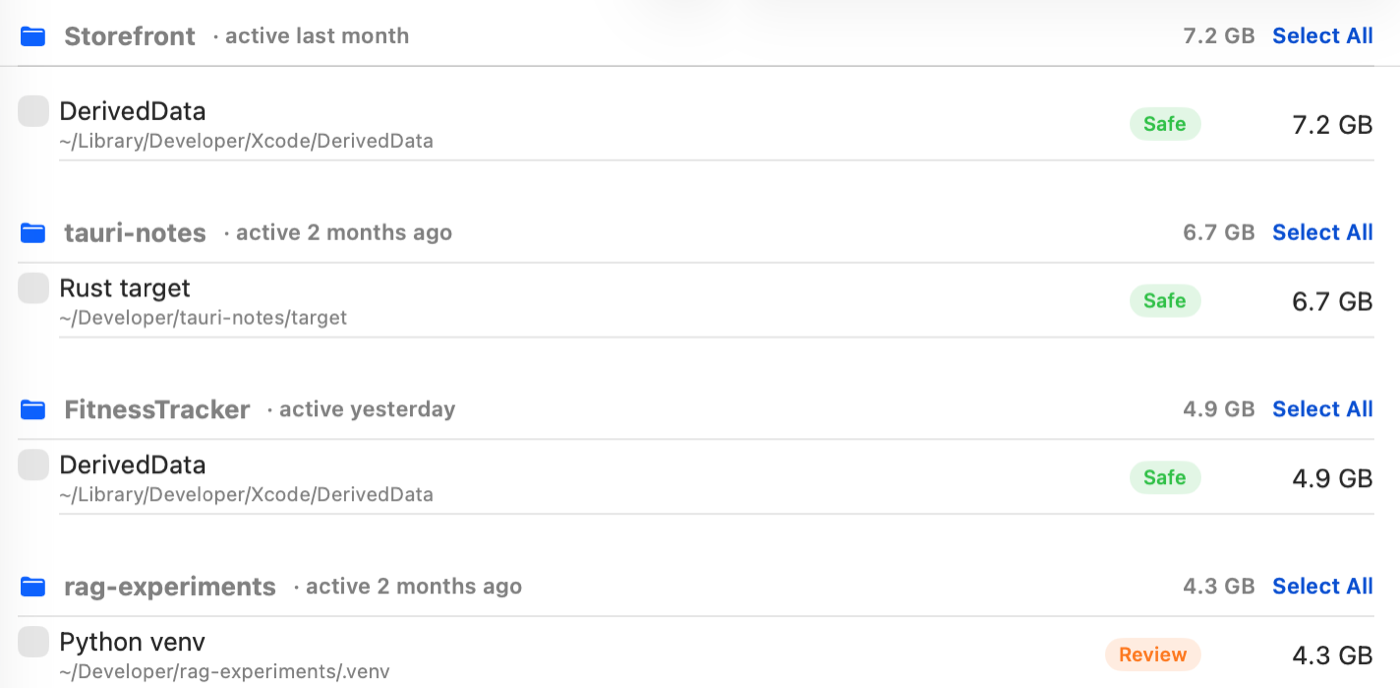
Rather see it all at once? Storage Cleaner finds DerivedData, simulator runtimes, unavailable simulators, device support and archives in one scan, shows when you last used each item and whether it's safe to remove, and cleans to the Trash with Undo. Free to scan; one payment of $2.99 to clean, yours for life.
Download freeFrequently asked
Will deleting DerivedData delete my code? No. Your source lives in your project folder; DerivedData is only build output and indexes.
Why does the Storage panel show Xcode as 12 GB but System Data as 150 GB? The "Developer" category counts the app itself; DerivedData, simulators and device support live in your Library folder and are counted as System Data. More in why System Data is so large.
How often should I clean? DerivedData refills with every build, so there's no point clearing it weekly. A cleanup after each major Xcode upgrade, when old runtimes and device support pile up, is usually enough.